
Writing Markdown & Using the Inline Editor
Markdown (.md) is Standalone Qwiki's primary authoring format. You can create new Markdown documents from New Document in the sidebar or edit existing ones inline with Edit Content.
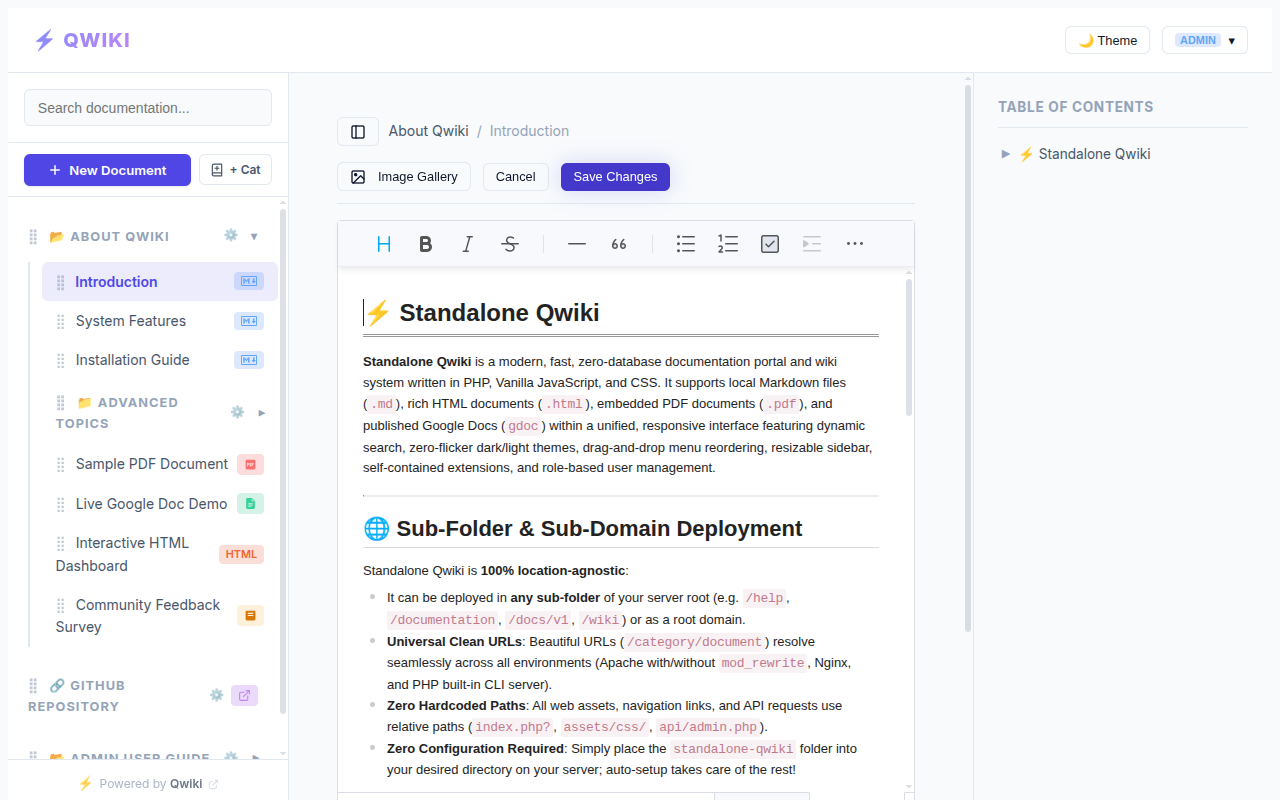
Inline Editor & Protected Mode
When you click Edit Content on a Markdown chapter, Standalone Qwiki opens the integrated Toast UI editor with a live toolbar, image upload support, and direct access to the Image Gallery.
- Automatic Protected Raw Mode: If a Markdown document contains raw HTML blocks (such as
<details>, custom<div>layouts, or `tags) or LaTeX/KaTeX math expressions ($...$/$$...$$`), the editor automatically activates Protected Raw Mode so WYSIWYG sanitization never strips or mangles your custom markup. - Saving & Locks: While editing, Standalone Qwiki holds an advisory soft lock to protect your work from simultaneous overwrites. Click Save Changes when done, or Cancel to release the lock without saving.
GitHub-Style Alert Callouts
Highlight notes, tips, warnings, and critical cautions using standard blockquote alert syntax:
> [!NOTE]
> Helpful background context for readers.

> [!TIP]
> Shortcut or best-practice recommendation.

> [!IMPORTANT]
> Essential requirement before proceeding.

> [!WARNING]
> Potential pitfall or breaking behavior.

> [!CAUTION]
> High-risk action that can remove data.
Standalone Qwiki also recognizes [!INFO], [!HINT], [!SUCCESS], [!DANGER], [!ALERT], and [!FAIL], and you can supply a custom heading right after the tag (for example, > [!TIP Pro Tip]).
YAML Frontmatter Metadata
You can place optional YAML frontmatter at the top of any Markdown file:
---
title: Release Checklist
owner: Platform Team
reviewed: true
tags:
  - release
  - operations
---
Standalone Qwiki parses frontmatter natively (without external YAML dependencies) and renders a collapsible Metadata widget at the top of the page. Frontmatter is automatically excluded from SEO summary extraction, and tags fall back cleanly into search/discovery metadata. Administrators can choose whether the metadata widget starts collapsed, expanded, or hidden site-wide.
Adding Images
- Direct Upload / Paste: Drag, paste, or insert images directly from the editor toolbar—files are uploaded safely into
uploads/. - Image Gallery: Click Image Gallery in the editor toolbar to reuse already-uploaded screenshots or graphics without duplicating files.
- Relative Paths: If you import or sync Markdown files via
qwiki-builder, standard relative Markdown image links referencing local asset folders (such asassets/images/*.png) are automatically uploaded and rewritten.
Next, learn how to enrich pages with Diagrams, Math Formulas & Embedded Videos.